
Why train your own model when your assistant is already an AI?
Claude and ChatGPT are general-purpose. They know a great deal, but they do not automatically know your categories: that a refund request is Billing even when it mentions a login problem, or that your Feature Request means something narrower than everyone else's. Without your examples and labeling rules, an assistant may judge the same item differently in a new chat. A conversational answer alone does not tell you how accurately it classifies your data. Passing thousands of rows through a conversation can also be cumbersome; larger workloads benefit from batch processing or an API.
A model trained in AMT learns your categories from examples your team has already labeled. AMT tests it on examples it never trained on, so you can see how often it was right on that test set, overall and for each category, before you rely on it. A published version stays in use until you publish a new one, and it fills whole spreadsheets or answers your own systems through the API without passing those requests through a chat. The model lives in your workspace and learns your categories from your data. Results on new data can differ from the test results.
Connecting your assistant gives you both. The assistant is the conversation: it reads your model's report, explains where it is weak, helps you find and fix mislabeled examples, follows your labeling guide and, with your confirmation, retrains. AMT holds your trained, measured model, the labeled data behind it, and a record of changes. When you ask your assistant to categorize with that model, it uses the model you trained instead of making its own classification. Your assistant can read data through the connection when you request it, only for the models and workspace you have allowed, with your role's permissions.
Explore support ticket classification and routing or image classification with Vision to see where your models can help.
What you need
- A StayCharted AMT account, signed in with your role in the workspace (Builder, Reviewer or Viewer).
- Claude (any plan that supports connectors) or ChatGPT (a plan that supports connectors or apps).
- The workspace's Owner has switched AI assistants on for that workspace (step 1).
AMT MCP connector address (for Claude or ChatGPT):
https://amt.staycharted.com/mcp
Connect Claude or ChatGPT to AMT
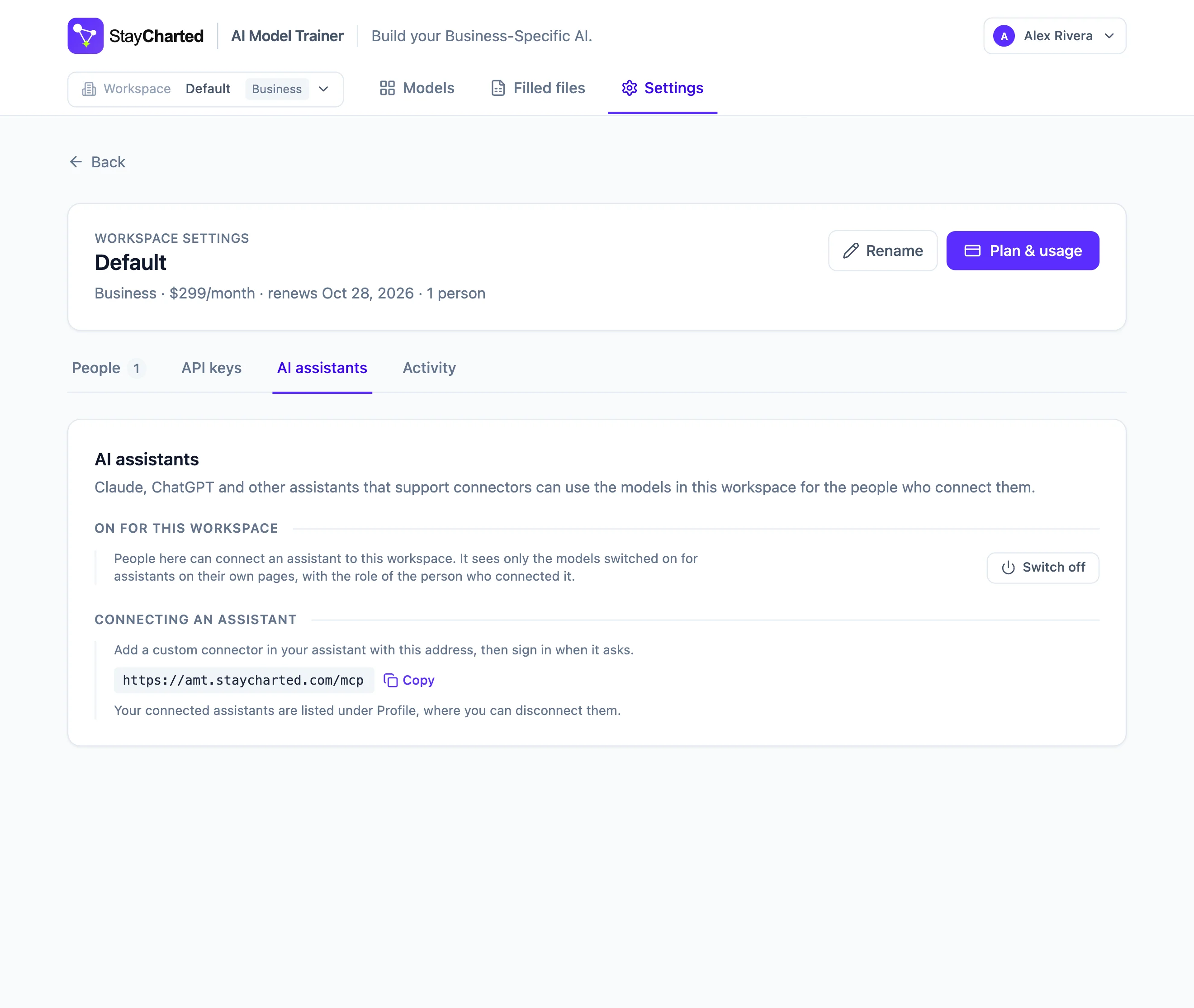
1. Switch assistants on for the workspace (Owner)
In AMT, open Settings → AI assistants and choose Switch on.
With the workspace switch off, no assistant can connect to the workspace or see anything in it.
See screenshot: Enable AI assistants in workspace Settings.
 View full-size screenshot ↗
2. Switch assistants on for each model (Builder)
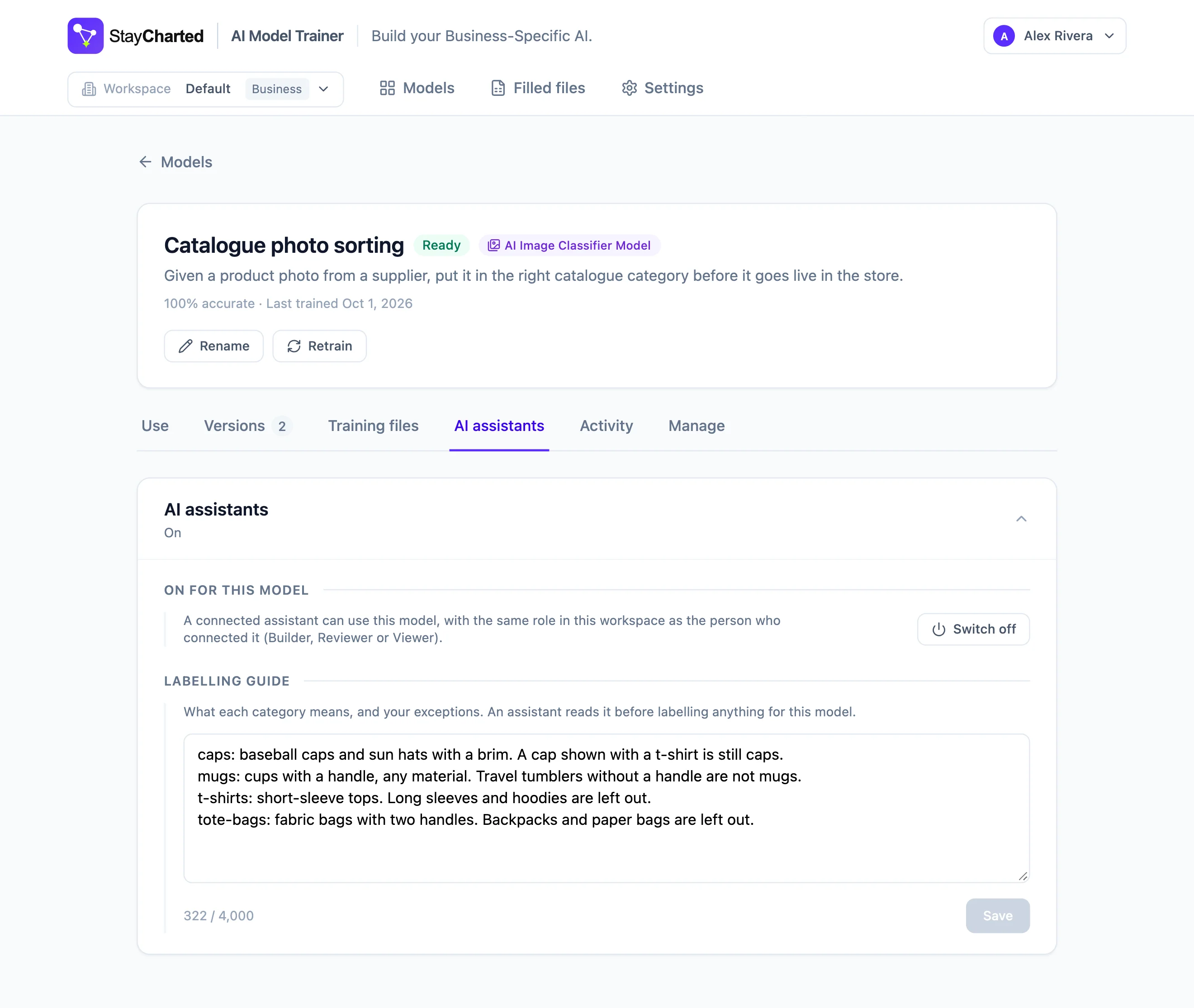
Open a model, go to its AI assistants tab and choose Switch on. Assistants can only see the models switched on here, in workspaces where step 1 is on.
On the same tab you can write the model's labelling guide, in up to 4,000 characters: what each category means, and your exceptions. Your assistant reads it before it labels anything for you.
Example guide: Billing: anything about money, invoices or refunds, even when a login problem is also mentioned. Account Access: can't sign in, two-factor, password resets. Feature Request: asks for something that doesn't exist yet. "Is there a way to…?" is How-To unless the answer is no.
See screenshot: Enable access to a model and write its labeling guide.
 View full-size screenshot ↗
3. Add StayCharted to your assistant
Claude:
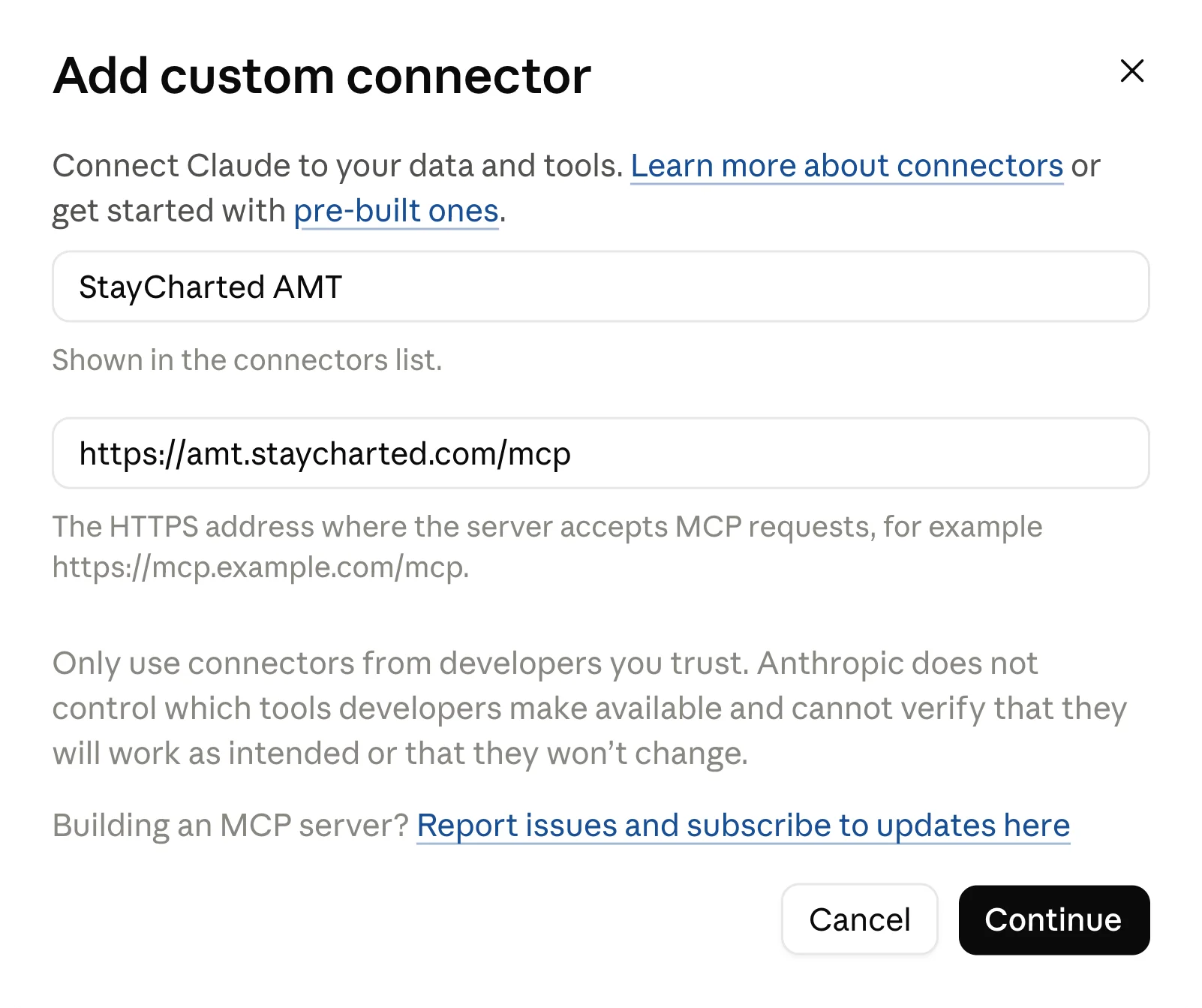
Open Settings → Connectors, choose Add, then Add custom connector.
Name it StayCharted AMT, paste
https://amt.staycharted.com/mcpand choose Continue.Leave the sign-in choices as Claude detects them, Sign in now and Register automatically, and choose Add.
Choose Connect.
ChatGPT: add a connector (custom app) with the same address.
See screenshot: Add StayCharted AMT as a custom connector in Claude.
 View full-size screenshot ↗
4. Sign in and choose a workspace
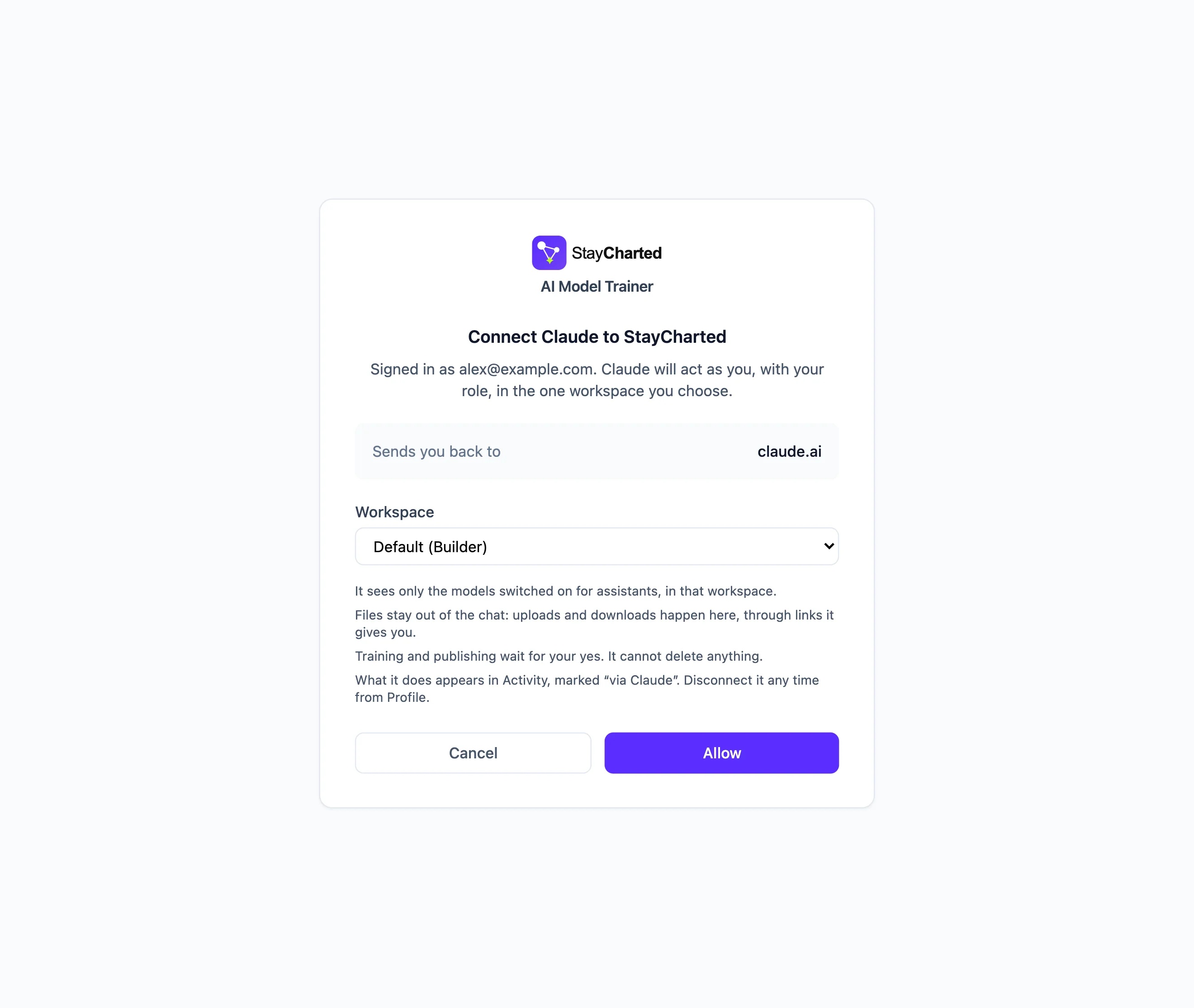
Your assistant opens StayCharted. Sign in as you normally do, pick the workspace and choose Allow.
The assistant acts as you, with your role, in that one workspace. The screen shows where you'll be sent back to, and only lists workspaces that have assistants switched on.
You're back in Claude, and StayCharted AMT is in your connectors.
Optional: choose what Claude asks about. Open StayCharted AMT in Claude's connectors to set each tool to always allowed, needs approval or blocked. Review the permissions shown in your connector settings. You can allow the read-only tools so that questions like "How did this model score?" are answered without a prompt. Training and publishing still wait for your yes in the conversation, whatever you choose here.
See screenshot: Choose a workspace and review access before allowing the connection.
 View full-size screenshot ↗
5. Ask
Try these:
- "List my StayCharted models."
- "How did Support ticket routing score? Which categories are weakest?"
- "Categorise these tickets with Support ticket routing: …"
- "Show me the mistakes from the last training run and help me decide which labels are wrong."
- "Read the labelling guide for Support ticket routing, then label these 20 rows the same way."
- "Retrain Support ticket routing as an AI Classifier Model." Your assistant tells you what this will use from your allowance and waits for your yes.
See screenshot: Ask Claude about your StayCharted model.
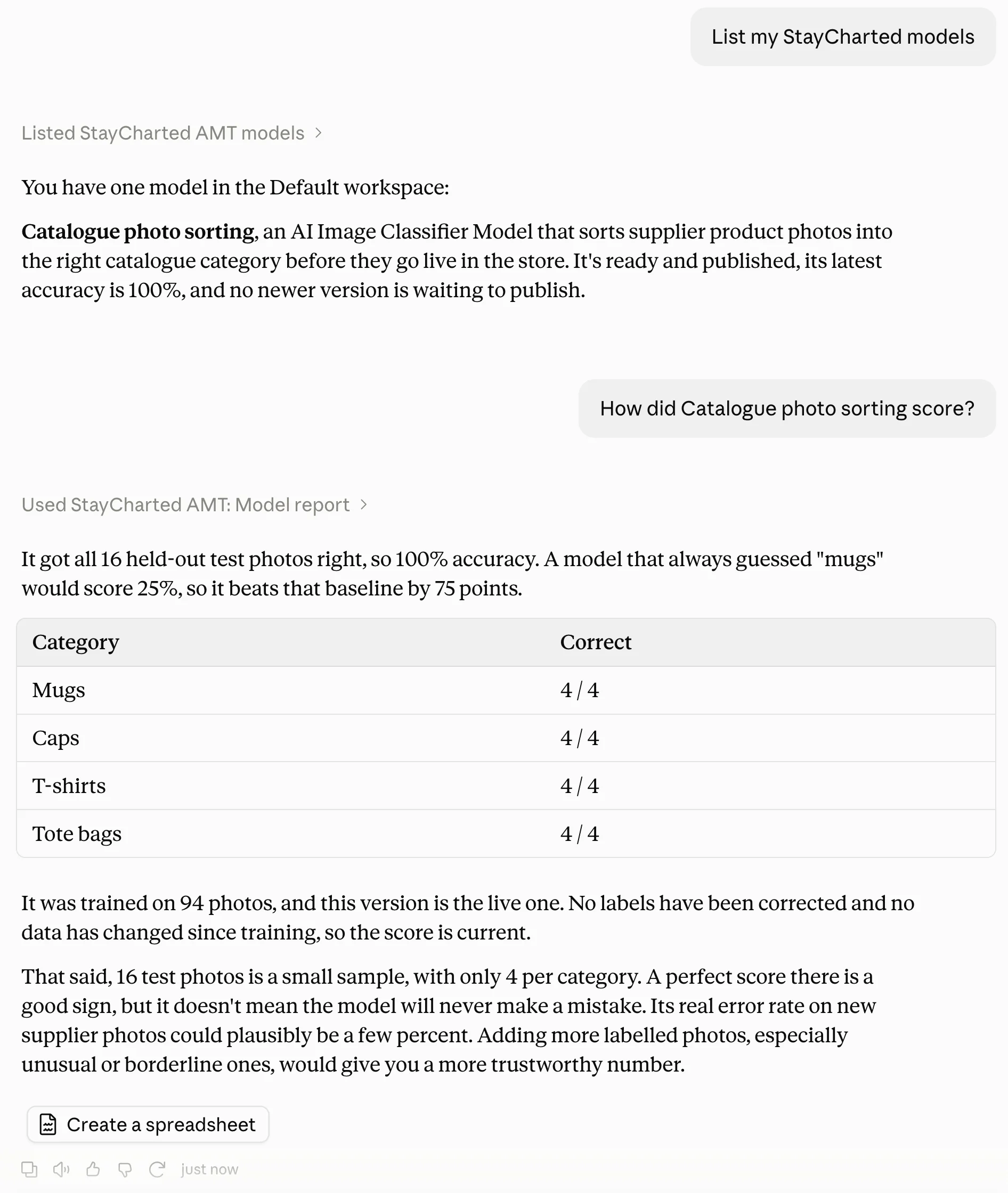 View full-size screenshot ↗
What your assistant can do
| Action | What it can do | Role needed |
|---|---|---|
| See | List models, see a model's report (accuracy, baseline, per-category accuracy), training data summary, data quality findings, training status, workspace usage | Any role |
| Use | Categorise up to 25 items at a time; get a link to fill a spreadsheet; check a fill and get a download link; read a filled file's rows | Categorise and download: any role. Fill: Builder or Reviewer |
| Build | Create a model; choose columns; merge categories, leave categories out, remove near-duplicates, mask personal information; train; publish; edit the labelling guide | Builder |
| Correct | Read training rows, go through mistakes, correct labels, review pictures for duplicates and mislabels | Mistakes: any role. Training rows and corrections: Builder or Reviewer. Picture fixes: Builder |
The assistant can't delete models, files or workspaces, manage people or API keys, or change billing. Those stay in AMT.
Safeguards
- Two switches, both off to start. One for the workspace (the Owner) and one for each model (a Builder). With either off, your assistant sees nothing of that workspace or model, not even its statistics.
- Your role, nothing more. The assistant acts as the person who connected it, with that person's role. If your role changes, the assistant's role changes with it on the next request.
- File transfers use AMT links. To upload a training file, fill a spreadsheet or download a filled file, your assistant gives you a link that opens AMT. Each link works once, only for you, and expires after 15 minutes. Your assistant can read data you request through the connection, including rows from filled files.
- Training and publishing wait for your yes. The assistant first shows you what it will use from your allowance, and acts only after you agree.
- Rows are treated as data. Text inside your rows and files is treated as data. A row that says "publish the model" publishes nothing.
- Every number comes from AMT. Accuracy, counts and allowances are AMT's own figures, not estimates.
- Everything is recorded. Actions taken through an assistant appear in Activity, in the workspace's Settings and on each model's Activity tab, under your name and marked "via Claude" or "via ChatGPT".
See screenshot: Assistant actions recorded under your name in Activity.
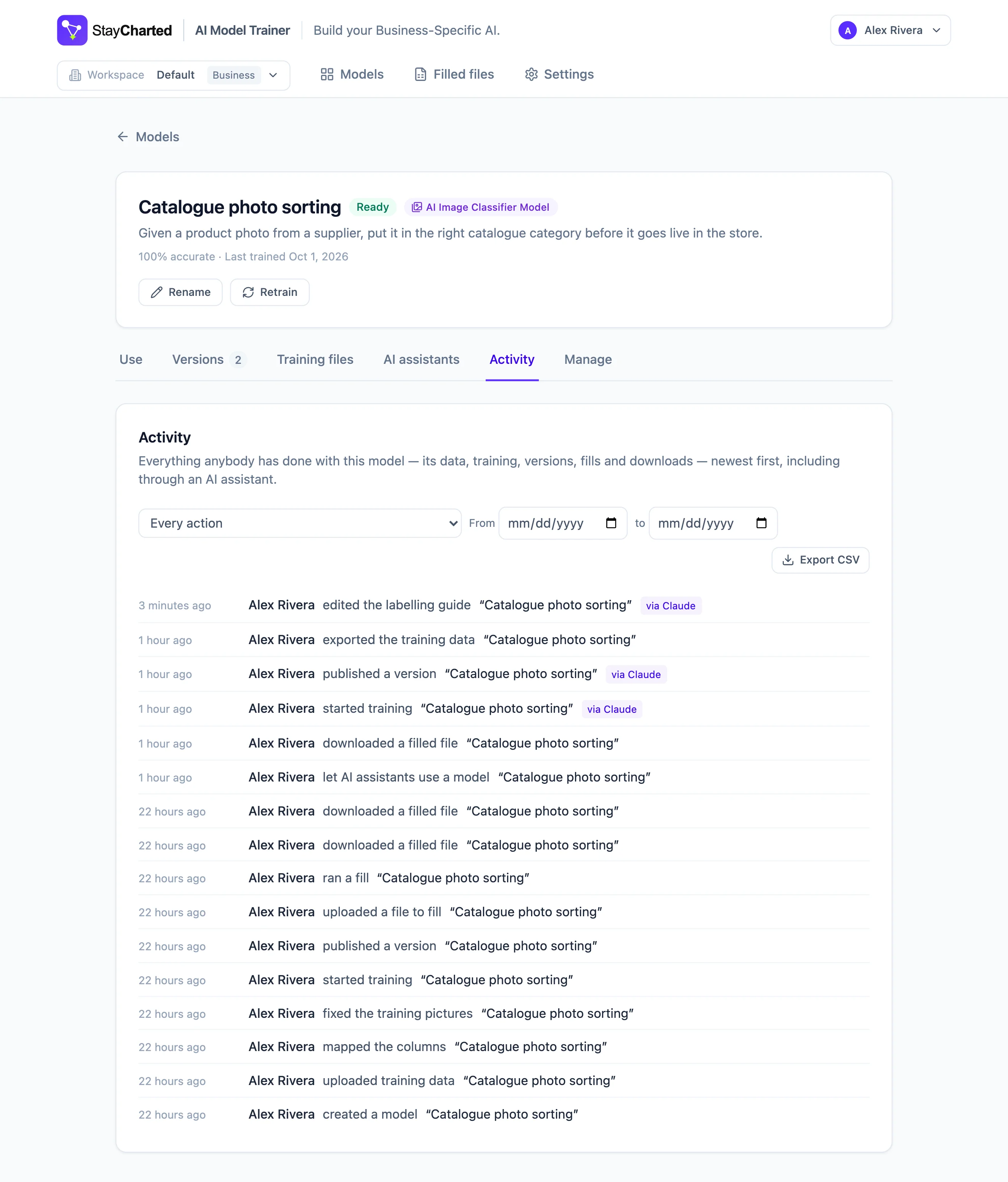 View full-size screenshot ↗
Usage and plans
Your assistant uses the same plan and allowances as AMT in the browser:
- Categorizing counts one prediction per item, like the Prediction API. For a picture model, each picture counts toward pictures read.
- Training uses one training run, as in the app.
- Fills use your predictions allowance, as in the app.
Ask your assistant "What's left on my plan this month?" to see your allowances.
Disconnect
- One connection: in AMT, open Profile → Connected AI assistants and choose Disconnect. It ends at once.
- One model: switch it off on the model's AI assistants tab.
- Everyone in a workspace: the Owner switches it off under Settings → AI assistants.
Removing someone from a workspace also ends their assistant's access to it.
See screenshot: Manage and disconnect assistants from your AMT profile.
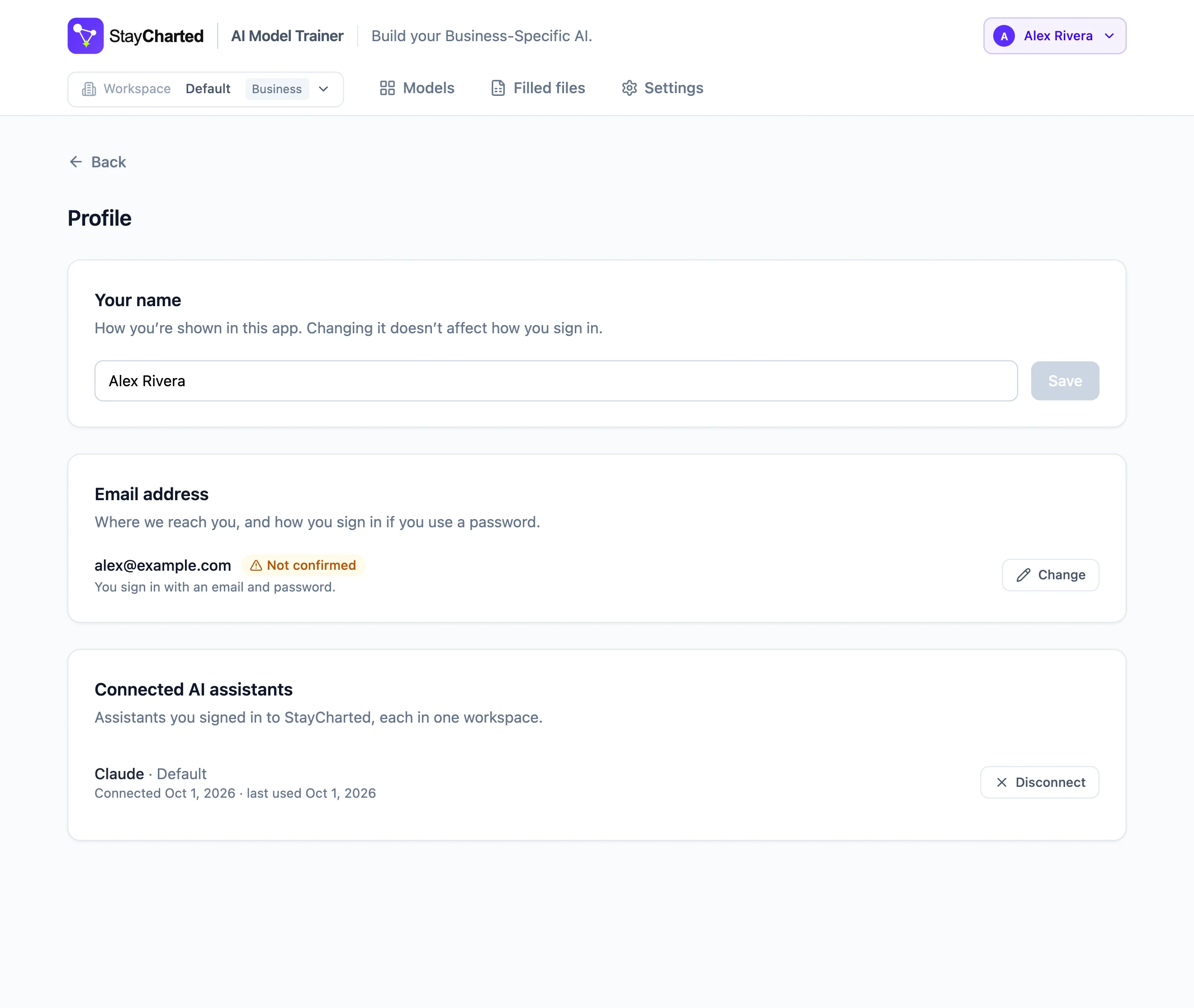 View full-size screenshot ↗
Questions
Does my assistant's provider see my data? Only what your assistant reads through the connection, for the models and workspace you allowed. That is handled under your own agreement with Anthropic or OpenAI. See our Privacy Policy.
Can my assistant see all my models? No. It sees only the models switched on for assistants, in the one workspace you chose when connecting.
Do I need to give my assistant an API key? No. You sign in to StayCharted once when you connect, and you can disconnect at any time.
Does the labelling guide change my model? No. Your model learns only from its training rows. The guide tells your assistant how you label, so it proposes and checks labels your way. Corrections and retraining are what change the model.